Shaders and gradients: motion without footage
A shader is a small program that computes a colour for every point and moment, so it can run forever without repeating a frame. glyf has 22 shader presets in four families — Gradient, Geometric, Abstract and Retro — tuned to stay broad and slow, because fine, fast-moving detail turns to mush once it's resampled onto a grid of characters.
Gradients are simpler: 8 palettes whose colour blobs drift around the frame when Animate is on. They make calm, colourful backgrounds.
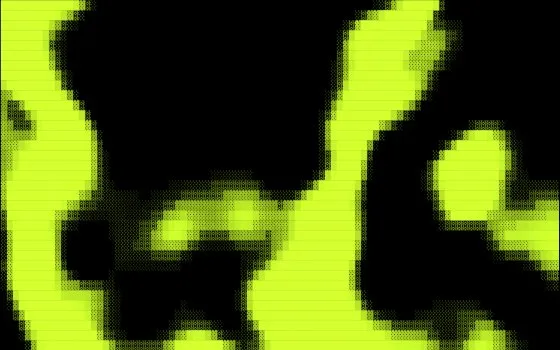
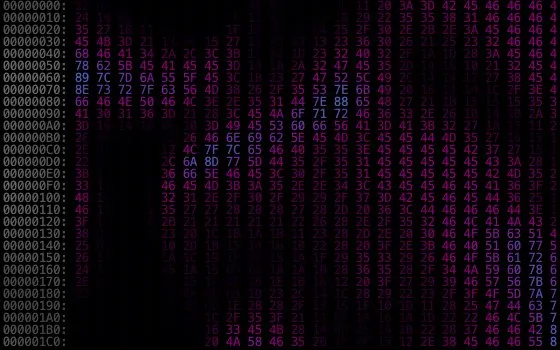
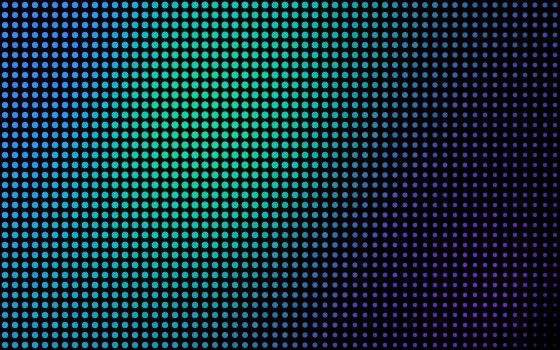
Step by step
- In the studio, set Source to Shader (or Gradient) and pick a preset. Shuffle rolls random settings if you want ideas.
- Shape the motion with Speed, Spread, Softness, Zoom, Warp and Contrast.
- Pick a Color remap palette, or Custom with your own two colours for an on-brand look.
- Choose a style. Characters with the Blocks ramp gives an LED-matrix feel; Dots, Hex Dump and Contour are good too. Add effects like Scan Lines or Film Grain for texture.
- Set the overall pace with Motion → Speed, which scales the shader and every animated effect together.
Export a loop
Open Export → Animation and choose MP4, WebM or GIF, a resolution up to 1920×1080, 12–60 fps and up to 20 seconds. For backgrounds, MP4 or WebM at 720p and 24 fps is usually plenty: small files, smooth motion. Keep GIFs short — every frame carries its own 256-colour palette, so they grow quickly. Exports are flattened onto black; the cursor interaction you see in the studio isn't recorded.
Use it as a website background
Put the video behind your content with autoplay muted loop playsinline and a poster image, so something shows before it loads. glyf's own home page does exactly this — its hero background is a glyf export.
- Lay a dark gradient over it so text keeps its contrast.
- Respect reduced-motion settings: show the poster instead of playing.
- Pause it when it scrolls out of view, and give visitors a pause button.
- Serve a smaller poster to phones — it's often the largest thing on the page.