How ASCII art works
A converter lays a grid over the image and measures the brightness of each cell. It then picks a character from a ramp — a string ordered from least ink to most, such as .:-=+*#%@. Bright cells get heavy characters, dark ones get light characters or a space, so the picture survives as text.
Two settings decide almost everything: the cell size (how much of the image each character stands for) and the ramp (which characters are available). Everything else is about giving the converter a clear image to work with.
1. Choose a photo that converts well
Characters can only show a handful of brightness levels, so contrast matters more than detail. The photos that work best have a clear subject, strong lighting and a plain or dark background: portraits lit from one side, silhouettes, neon at night.
Busy, evenly lit scenes turn to noise. If that's what you have, the adjustments in step 4 can rescue a lot of it.
2. Pick the Characters style
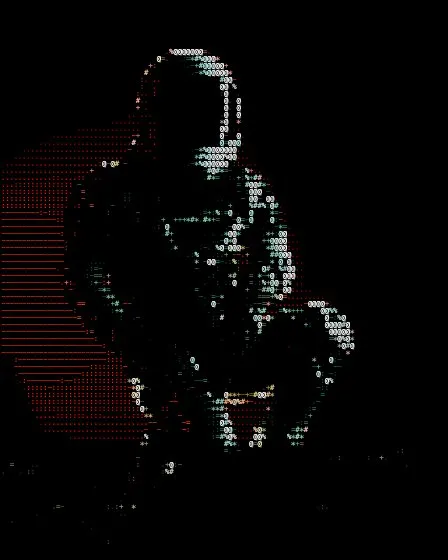
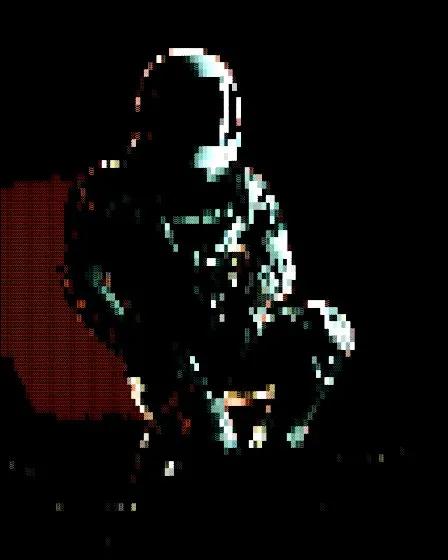
Open the studio, drop your photo onto the canvas, and choose Characters under Style. It's the classic look — one character per cell, in the colour of the pixels under it. glyf has 24 other styles too; Braille packs eight dots into each character for much finer detail.
3. Choose a character set — or write your own
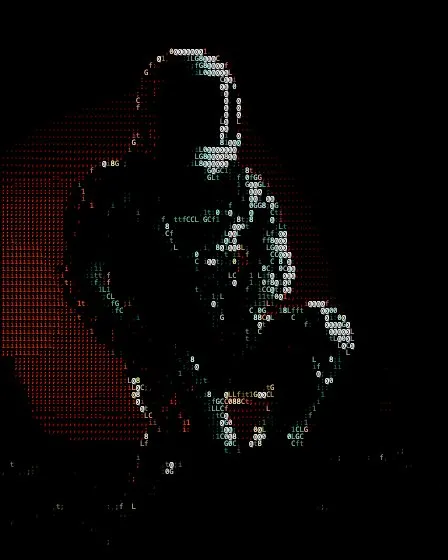
Under Character Set, Standard is the familiar ten-step ramp, Blocks uses shaded blocks (░▒▓█) for a solid look, Binary uses just 0 and 1, and Code uses a longer ramp of letters and digits for more tonal steps.
Choose Custom to type your own ramp. Order it from lightest to darkest — start with a space so the darkest areas stay empty — and pick characters whose visual weight rises evenly. Short ramps give a bold, posterised look; long ones give smoother gradients. Line breaks are ignored, and the counter under the box shows how many characters the ramp holds.
4. Tune cell size and contrast
Cell Size trades detail for legibility: small cells hold more of the photo, large ones make the characters readable. Around 8–12 px is a good start.
In Adjust, raise Contrast first. Edge Emphasis traces outlines so faces and objects stay recognisable, Density shifts how much ink the whole image carries, and the tone curve gives fine control over which tones get which characters. For a single-colour terminal look, apply the B&W grade and a coloured tint.
5. Export as text or an image
Choose Export → Plain text for characters you can paste into a README, terminal or chat — one row per line, trailing spaces trimmed. For anything visual, export PNG at up to 3× resolution, or SVG for a vector version. See the export guide for which to pick.
Troubleshooting
- Mostly empty? The image is too dark for the ramp: raise Brightness or Density.
- A wall of @ signs? It's too bright or flat: lower Brightness, raise Contrast, or turn on Invert.
- Subject lost in noise? Use larger cells, more Edge Emphasis, and a Solid Black background.
- Text looks skewed when pasted? Paste it somewhere that uses a monospace font — a code block in Markdown or Discord.